

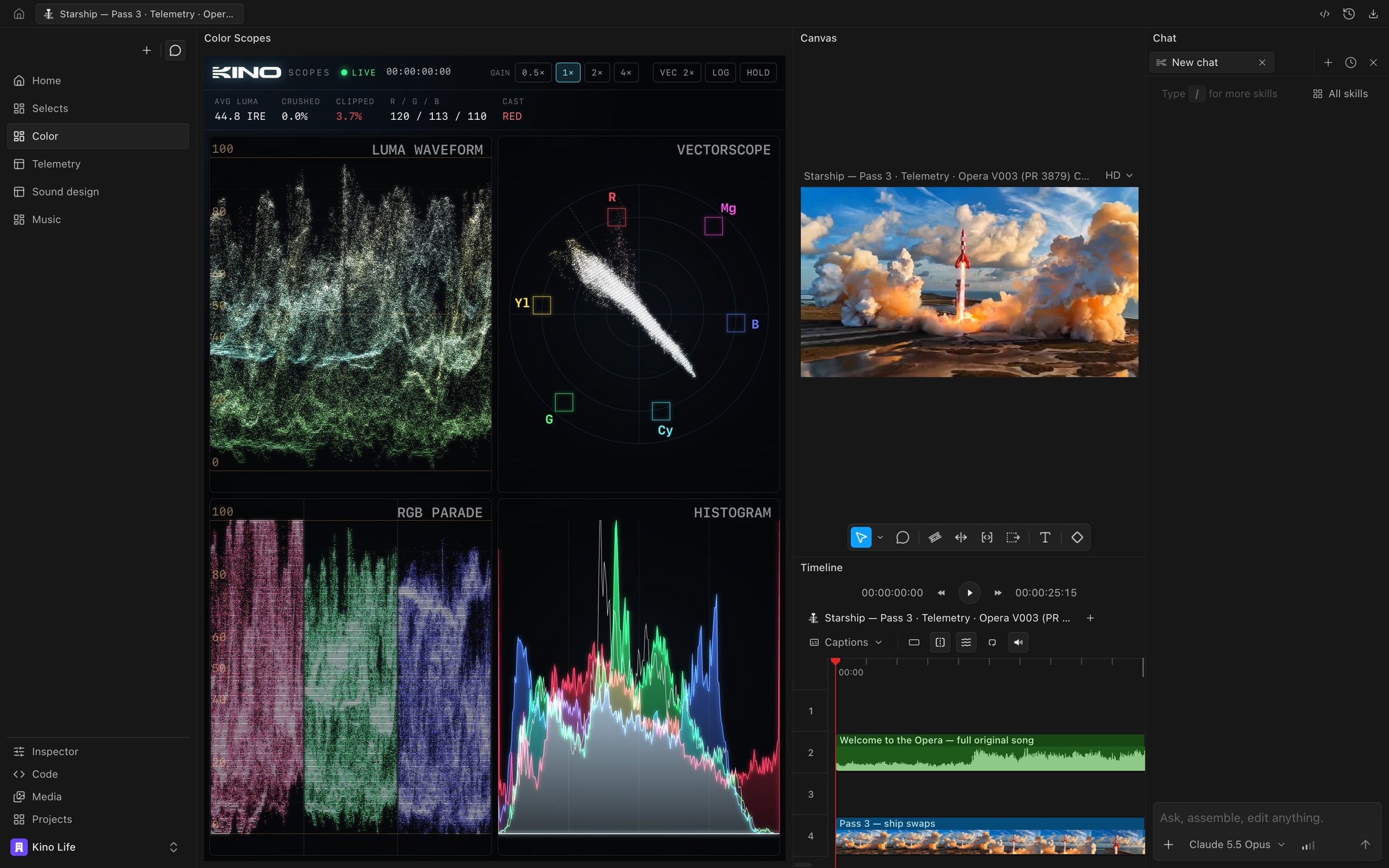
A Color view with a custom scopes panel docked beside the canvas
Turn on views
Go to Settings > Experimental > Dynamic panels. See Panels.The view rail
Every project starts with a Home view at the top of the rail. Views you add appear below it.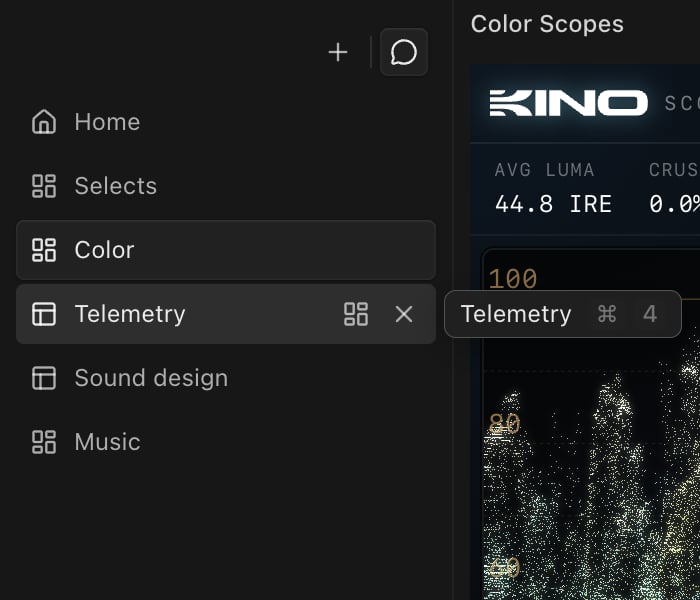
- Press Command+1 through Command+9 on a Mac to switch to the first nine views. Home is Command+1. Hover over a view to see its shortcut.
- With a view focused, the Up and Down arrow keys move through the rail, and Home and End jump to the first and last view.
- Drag a view up or down to reorder it. Home always stays first, and pinned views can’t be dragged.
- Hover over a view to show its layout button and its close button.
Create a view
Click + at the top of the rail and choose New view. The new view starts with the layout you are looking at, and a new chat opens in it. Until you name it, a new view shows the title of its first chat. Closing a new view before you use it deletes it. You can also ask the agent for a view. See Views made by the agent.Rename, pin and close views
Double-click a view to rename it, or right-click it and choose Rename view. Home can’t be renamed. Right-click a view and choose Pin view to keep it open. A pinned view shows a pin icon and can’t be closed or dragged. To close a view, hover over it and click its close button, middle-click it, or right-click it and choose Close view. The same menu has Close views above, Close views below and Close other views. These skip Home and pinned views. Closing a view only closes it for you. Its layout, its chats and any agent turns still running in them are kept.Reopen a closed view
Click + at the top of the rail. Up to five named views are listed under Closed views, most recently closed first. Click one to reopen it. Choose Show all to see the rest, including views that were never named. Unused views that have been closed for more than two weeks are removed from the list.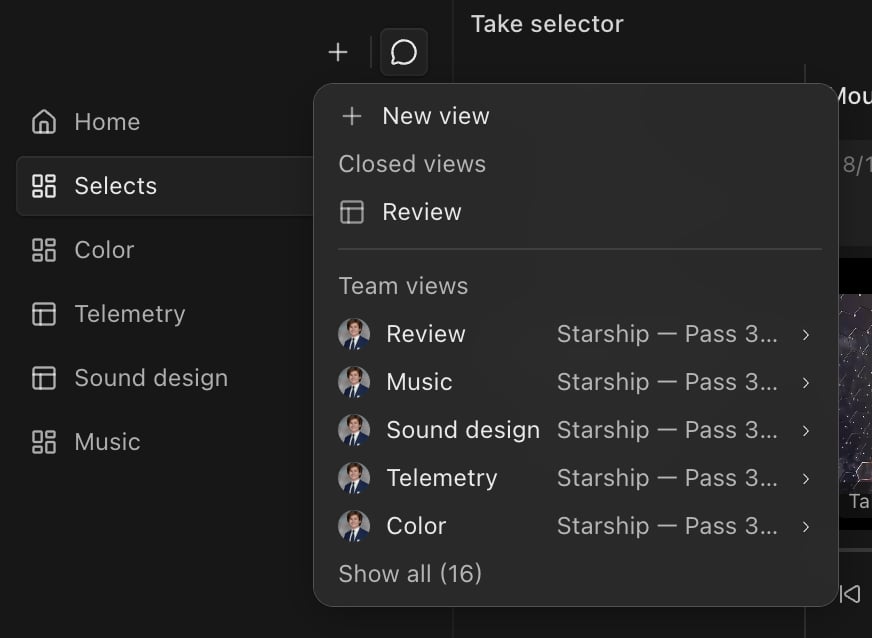
Change a view’s layout
Hover over a view and click its layout button to open the Layout menu for that view. Changes you make here apply to that view only.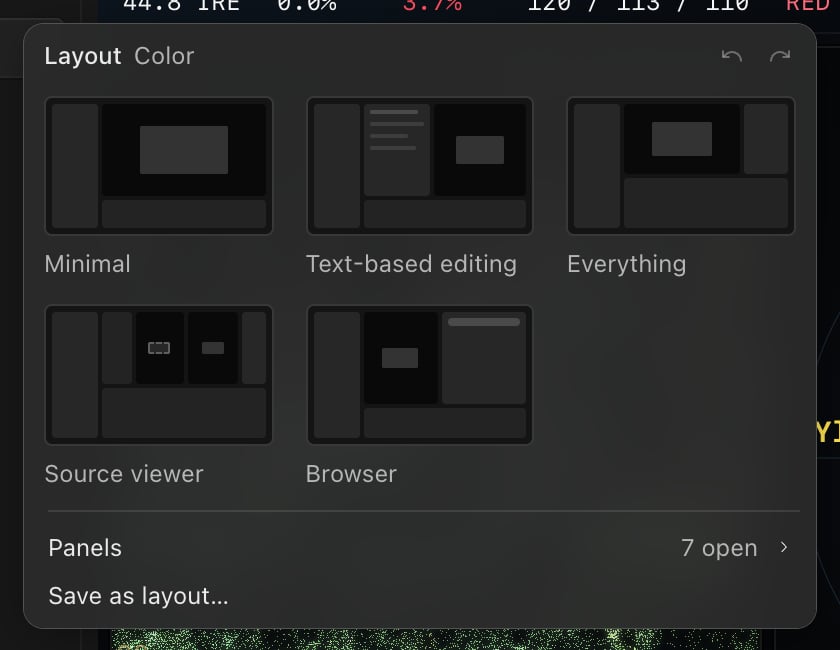
A preset doesn’t open or close the chat panel.
The tile that matches the current layout is outlined. If you change the layout after applying a tile, the menu shows which layout you started from and a Revert button that goes back to it.
Panels opens a list of every panel with a check mark next to the open ones. Click a panel to open or close it. Custom panels are listed below the built-in panels; see Custom panels.
Save as layout… saves the current arrangement as a named tile, stored on this device. Hover over a saved tile and click the trash icon to delete it, or select it and press Delete.
The undo and redo arrows at the top of the menu step back and forward through layout changes: opening, closing, moving and resizing panels. They are separate from undo in the timeline.
Move and resize panels
Drag a panel by its header to dock it somewhere else, or drag the dividers between panels to resize them. You can also click the … button in a panel’s header to move it to an edge of the workspace or next to another open panel.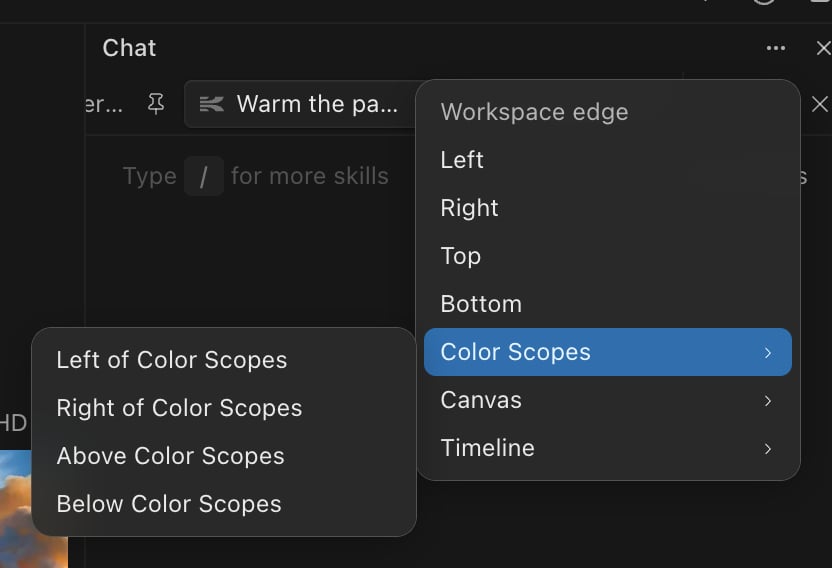
Save and share a view
A view’s name and saved layout are stored in the project, so everyone who opens the project works from the same views. Your own layout changes stay personal until you save them:- Right-click the view and choose Save view to make your current layout the view’s saved layout for everyone.
- Right-click the view and choose Reset panel layout to drop your changes and go back to the saved layout.
- Right-click the view and choose Copy view link to copy a link that opens the project on this view.
Team views
Views that your teammates have named are listed under Team views in the + menu, with the creator’s picture and the project the view comes from. Home and views still called “New view” are not listed. Hover over a team view to see a preview of its layout, who made it, and its description. From there:- Add copy to project adds a copy of the view to the project you have open and switches to it. Custom panels the view uses are copied with it. Viewer seats can’t copy views. When a view can’t be copied yet, the menu says why.
- Open original opens the project the view came from, on that view.
Chats inside a view
Each view has its own chat tabs along the top of the chat panel. A chat belongs to the view it was started in.
- Click + in the chat panel, or press Option+N, to start a new chat in the current view.
- Double-click a tab to rename the chat.
- Drag tabs to reorder them.
- Click a tab’s close button or middle-click it to close it. Closing a tab doesn’t delete the chat, and an agent that is still working keeps going.
- In the desktop app, Command+W closes the current chat tab. It leaves pinned chats open.
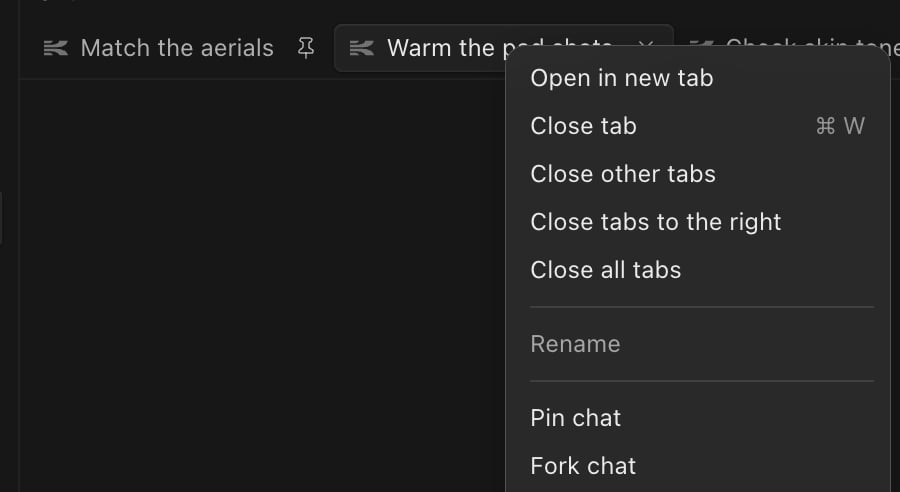
- Pin chat moves the chat to the front of the tab strip and keeps it there. A pinned tab shows a pin instead of a close button; click the pin to unpin it.
- Close other tabs, Close tabs to the right and Close all tabs close several tabs at once. Pinned chats stay open.
- Fork chat copies the chat and its messages into a new chat.
Chat history
Click the clock button in the chat panel to search past chats. Use All, Mine and Shared to show every chat, only your chats, or only chats started by teammates. Pinned chats are listed first. Each chat is labeled with the view it belongs to, and picking one opens it in that view.Views made by the agent
Ask the agent for a workspace for a task, for example “Make a view for color with scopes next to the canvas.” The agent can:- Create a view with a name, an icon, a short description and a layout preset.
- Open, close, move and resize panels in that view, or apply a preset or a saved layout.
- Save the view so teammates get the same layout.