

What happens after you import
Every file you add kicks off a set of analysis jobs. They run in parallel when possible, and each one adds a different kind of metadata to your footage.
Together these jobs build the index that powers search, logging, chat, and agents working with your library. Proxies for remote playback are generated separately in your browser during upload — see Local & Remote Media for how playback picks between original files and streams.
Monitoring jobs
The Jobs page shows the processing status of every file: transcription, visual analysis, logging, and proxy generation.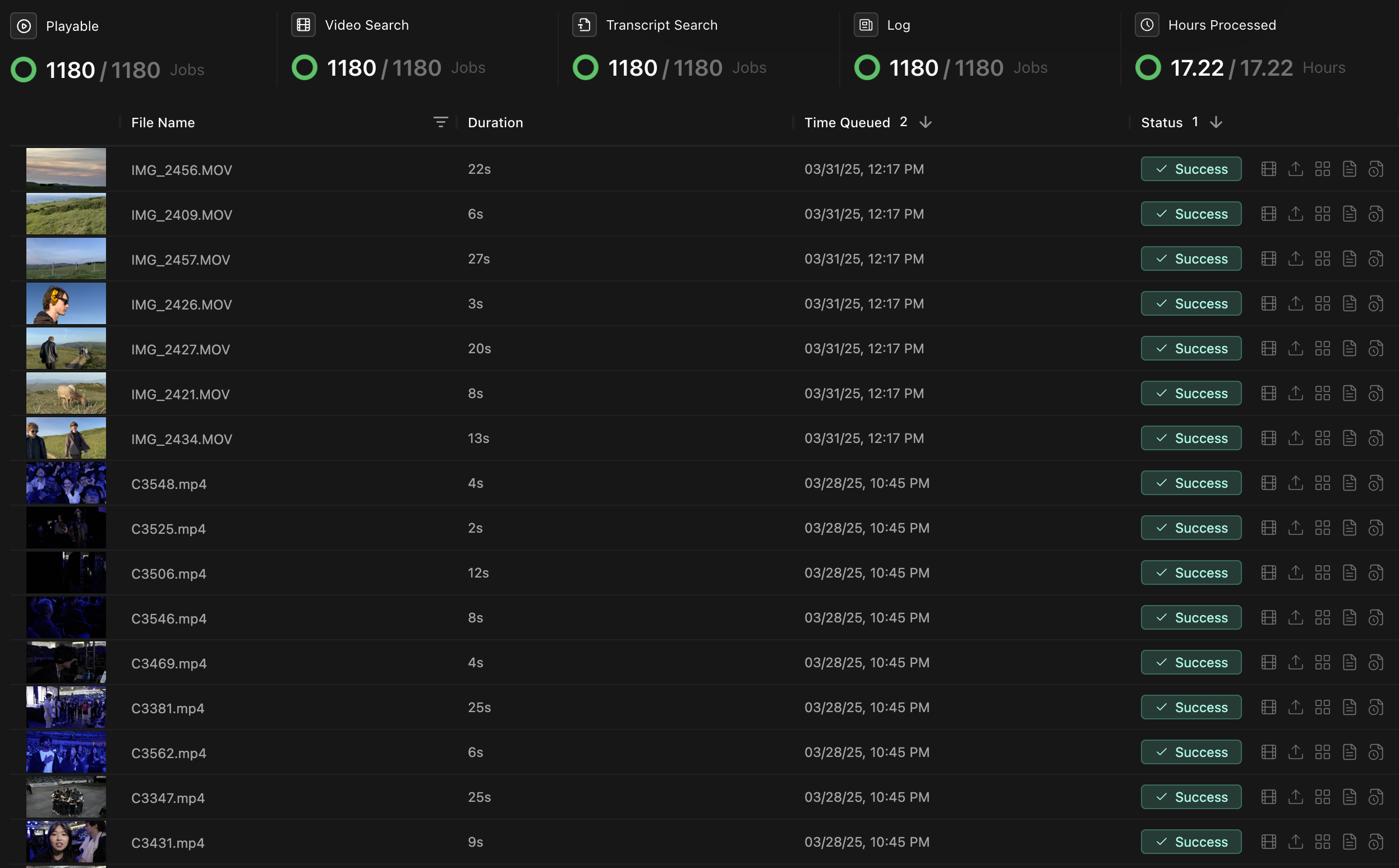
Monitor AI processing progress for transcription, visual analysis, and logging
Troubleshooting
For persistent issues:
- Restart Kino to refresh connections.
- Update to the latest version.
- Check that you have enough disk space for temporary files.
- Contact support@kino.ai or join our Discord.