

.cube files for your whole organization. You can put a LUT on a timeline clip, or set a source LUT on a video in your library so it is used every time you add that video to a timeline.
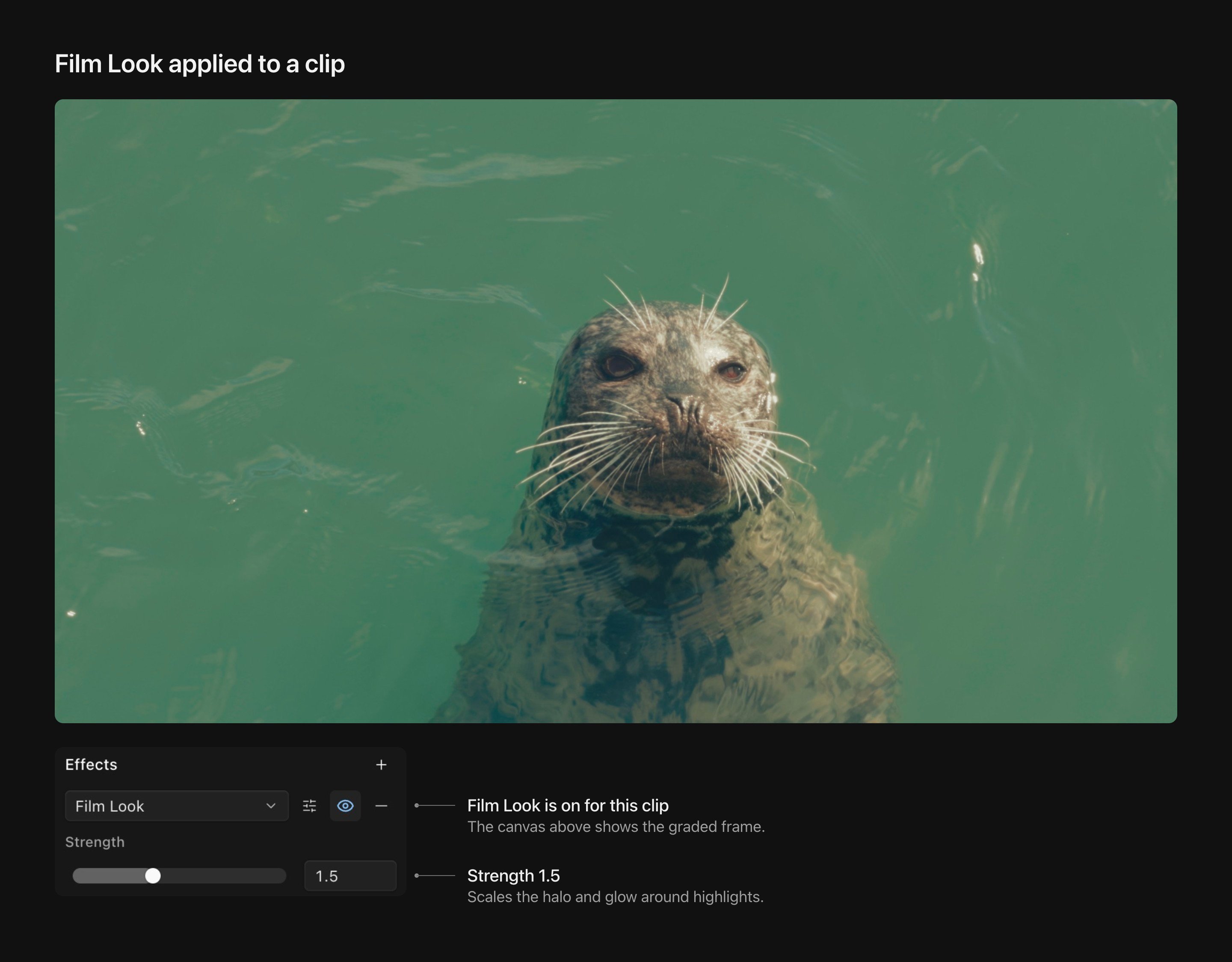
The Film Look effect at Strength 1.5 on a seal clip, as Kino renders it.
Apply a LUT to a clip
Select a video clip in the timeline. In the inspector, click + next to Look (LUT) and pick a LUT. Kino applies it at 100% intensity. The picker has a Search LUTs field at the top. LUTs you imported are listed first, under Custom, followed by the built-in camera and film LUTs. Each row shows a thumbnail of the current frame with that LUT applied.Preview before you choose
Hover over a LUT, or move through the list with the Up and Down arrow keys, to preview it on the canvas. Nothing is saved until you click a LUT or press Enter. Moving the pointer out of the picker, or pressing Escape to close it, puts back the look the clip had before.Intensity, stacking and removing
Each LUT on a clip has an intensity field from 0% to 100%. Click + again to add another LUT to the same clip; Kino applies them in order, top to bottom. Click the minus button next to a LUT to remove it. To replace a LUT, click its name and pick a different one.Several clips at once
With several video clips selected, Look (LUT) shows one picker for all of them. It reads Mixed when the clips have different grades. Picking a LUT replaces the grades on every selected clip with that one LUT at 100%, and None removes them.Set a source LUT on a video
A source LUT belongs to the video in your library, not to a clip. Set it when you want the same look every time the footage is used, for example a log-to-Rec.709 conversion for everything from one camera.- In the viewer, click the LUT button in the playback controls. The picker stays open after you choose, so you can try several LUTs and set the intensity with the slider. Click the X next to the LUT name to clear it.
- In the media library, select one or more videos, right-click and choose Set source LUT…. The LUT you pick is set at 100% intensity on all of them, and None clears it.
Import your own LUTs
Kino imports.cube files, zip files that contain .cube files, and folders.
- In any LUT picker, click Import and choose LUT files or zip… or Folder…. You can also drag files onto the open picker.
- In the inspector’s Look (LUT) section, use Upload LUTs or Folder, or drop files on that area.
- Open the command menu and run Import LUTs….
.cube and .zip files inside it and skips everything else.
A LUT is named after the TITLE line in the file, or the file name if there is none. Importing a file your organization already has does not create a second copy: Kino keeps the existing LUT and its name.
Import with an agent
Agents import LUTs with theaddMediaToKino tool. A source can be a local file ({ type: "localFile", absolutePath: "/absolute/path/look.cube" }, which needs desktop file access), a URL ({ type: "url", url: "https://...", name: "look.cube" }) or a chat attachment. Zip files work too. LUTs don’t become media or bin entries, so the result lists them under luts, each with a lutId such as org:<uuid>, and any file that failed under failed. listLuts returns the IDs of built-in and custom LUTs. To apply one in a composition:
Rename or delete a custom LUT
Right-click a LUT under Custom in the picker and choose Rename or Delete from picker. Deleting removes the LUT from the picker for everyone in the organization. Importing the same file again brings it back with its old name.Who can use custom LUTs
Custom LUTs belong to your organization. Everyone in it sees them in the picker and can apply them, and they are not available in other organizations. Viewer seats can’t import, rename or delete LUTs.Matching a LUT to your footage
A camera LUT is built for one recording profile, which is a transfer curve and a color gamut together. Sony footage recorded in S-Log3 / S-Gamut3.Cine needs a LUT made for S-Log3 / S-Gamut3.Cine, not one made for S-Log3 / S-Gamut3. Choose the LUT for the profile the camera recorded, as set on the camera or noted by whoever shot the footage. The file type alone, such as MP4 or MXF, doesn’t tell you the profile. A LUT made for a different profile than the footage gives incorrect colors.Limits
A
.cube file that contains both a 1D shaper and a 3D table is not supported. Ask the LUT’s supplier for a standalone .cube version.