

Embedded Claude Code and Codex
Claude Code and Codex now run inside the Kino desktop app. Sign in with the Claude or ChatGPT subscription you already have, and your agent works on your open project: it searches your footage, edits the timeline, and writes motion graphics, while you watch the cut come together on the canvas.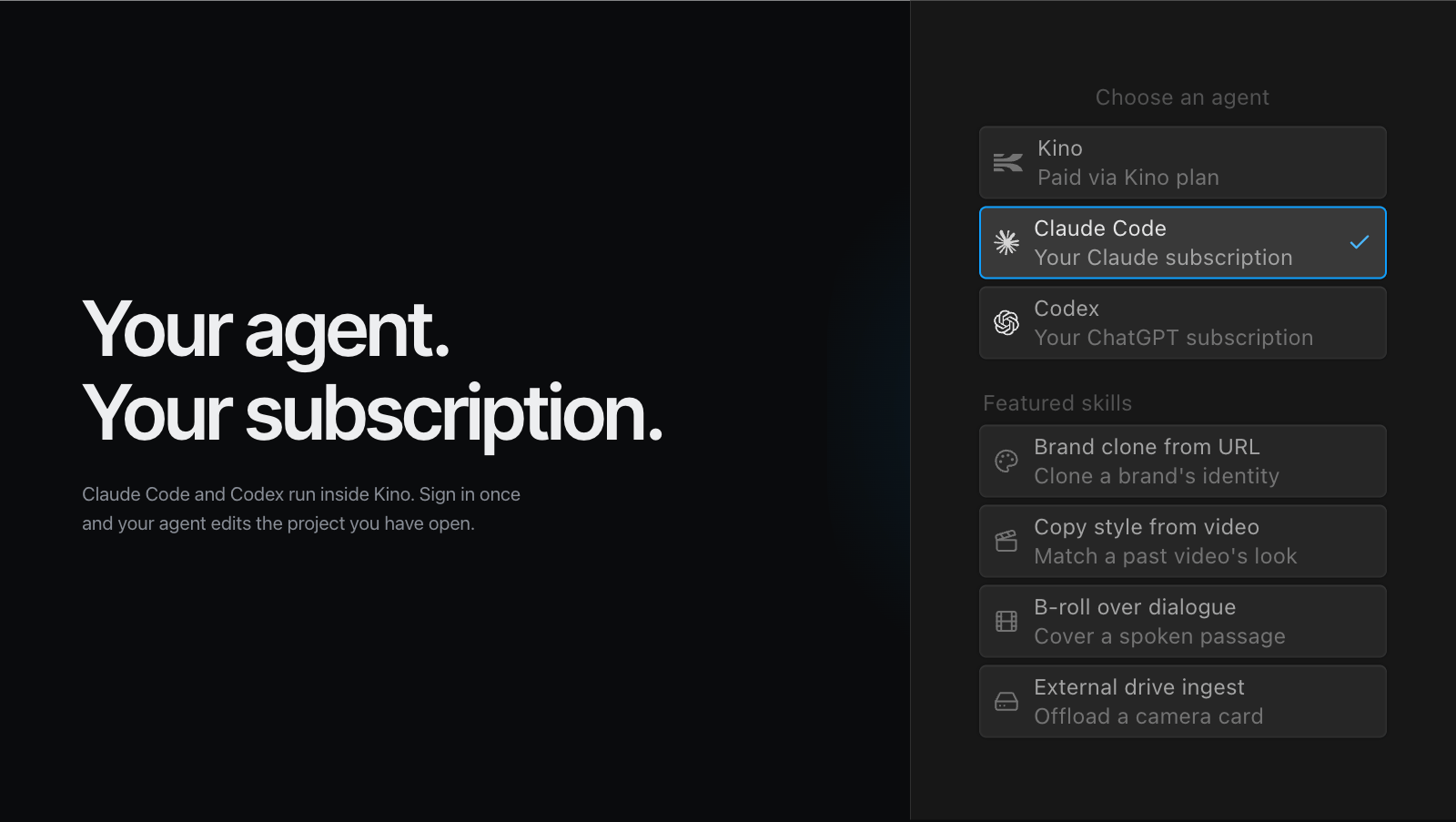
Your agent, your subscription
Pick Claude Code or Codex in the chat panel’s agent picker and log in once. Kino doesn’t meter these messages — they run on your Claude or ChatGPT plan. Codex brings the GPT-5.6 models and OpenAI’s Fast service tier for quicker turns.Control how much it can do
Choose the model and thinking effort per conversation. Three permission levels decide how independently the agent works: approve each action, auto-approve edits, or skip approvals entirely. For bigger requests, the agent proposes a plan you can review before it touches the timeline.Long sessions, without the mess
A live strip shows what the agent is running. You can fork a session to try a different direction, or rewind it to an earlier point. Both agents can use your MCP servers, and with Claude Code you manage which ones from inside Kino.Improvements
- Search inside the timeline script panel
- Fade in and out controls on every clip
- Cmd+A selects all media in any media view
- Export progress lives next to the Export button
- Reveal in Finder for locally-linked media in the desktop app
- Trackpad haptics for timeline snapping and frame detents in the desktop app
- Camera recordings capture at native resolution; system audio in screen clips doubled to 256k
- The microphone records as its own clip, aligned with the screen recording
- Images attached in chat become media assets you can cut with
- Rate limits from AI providers now surface in the chat error banner
- Faster timelines on large projects, and project libraries sync on demand
Fixes
- Fixed a startup crash in the packaged desktop app
- Fixed audio going silent after playback had been paused for a while
- The player opens at the requested time instead of visibly seeking after first paint
- Trimming a clip stops at its neighbor’s edge instead of resetting the drag
- Clicking a clip only selects it; clicks on the ruler and empty timeline seek
- The playhead stays centered while zooming with follow-playhead on
- Fixed copy and paste failures in the editor
- Fixed timeline timestamps painting over track labels
- Restored the cloud icon on remote media cards
- Deep links across organizations open correctly in the desktop app
- Agent timeline edits are more reliable: fewer overwrite failures and correct selection targeting
Recording captures at edit grade
Recording inside Kino produces material you can cut with. Clip fades, Separate Audio, and full-rate timeline zooming land alongside it.Every source, its own clip, in sync
Kino used to mux the microphone into the camera file. A good microphone never became its own clip, its audio drifted with nothing to nudge, and the browser’s voice-call processing (echo cancellation, noise suppression, automatic gain, mono downmix) was applied to a studio mic and couldn’t be undone in post. A 4K webcam was negotiated down to 720p on the way in.Now every source records to its own file. All the recorders start on the same real-world t0 once each camera has delivered its first frame, so the clips overlay in sync when they land on the timeline. The mic is captured raw at its native channel count and 256 kbps. The camera negotiates its best mode up to 4K with bitrate scaled to it, 25 Mbps at 4K, which also visibly sharpens Retina screen captures. A live level meter in the mic row tells you the mic is working before you start.Clip fades, and Separate Audio
Drag the fade handles on either end of a clip, or type exact durations in the inspector. One envelope drives opacity and volume together, the easing is selectable (linear, ease in, ease out, ease in-out), and the ramp draws on the clip itself. Fades now survive a reparse instead of resetting to zero.Right-click a video clip and choose Separate Audio to detach its audio onto its own track, the way Detach Audio works in Final Cut. The video keeps its lane and goes silent, and the audio inherits the clip’s trim in and out, playback rate and volume, so it stays frame-locked to the picture.Zooming keeps full frame rate, with filmstrips live
Zooming a long timeline used to blank the filmstrips and repaint clip geometry at a stutter, which you feel every time you scope in on a cut point. Sprite decode moved off the main thread, tiles are reused across zoom levels, and a per-frame raster budget bounds the work, so the strip keeps drawing while you scroll the wheel.Releasing a drag got cheaper too. On a timeline with hundreds of clips, letting go no longer re-parses the same unchanged code several times over, the mounted composition no longer re-renders on every release, and the layers panel windows its rows.Agents can look at your footage
Search results used to give an agent metadata and nothing else, so it would confidently pick the wrong clip. An agent can now render a contact sheet from any media item and see the frames before it cuts. It can read back the script your timeline actually plays (audible clips only, in order, with timecodes), find the exact frame boundaries where a line is spoken, and build and edit bins. An image you paste into chat becomes a real media asset.Search improved on your side of the box as well. Cmd+K has a dedicated Files tab, so a filename query finds the file instead of guessing at visual matches, and the timeline script panel has a find widget with next and previous.Improvements
- The mic records as its own clip, raw, at its native channel count and 256 kbps
- The camera records at its native resolution up to 4K, with bitrate scaled to it
- System audio in screen recordings moved from 128 kbps to 256 kbps
- A live level meter in the recording dialog shows the mic is working before you start
- Drag the fade handles on a clip or set exact fade durations in the inspector, with selectable easing
- Right-click a video clip and choose Separate Audio to detach it onto its own track, frame-locked
- The followed playhead stays centered through a zoom instead of drifting off screen
- Cmd+A selects every clip in any media view, including in the desktop app
- A dedicated Files tab in Cmd+K finds a file by name instead of guessing at visual matches
- Search the timeline script panel with next and previous
- Agents can render a contact sheet from any clip, read back the script your timeline actually plays, and find where a line is spoken
- An image you paste into chat becomes a real media asset
- The script panel skips muted clips, so b-roll no longer interleaves words into the narration
- Download original media, including in bulk from the grid
- Chat says when a model provider rate-limits you instead of showing a generic error
- Upgrade prompts appear where you hit the limit rather than being buried in the org switcher
- Projects and their version history sync on demand instead of pulling the whole organization
Fixes
- Fixed silent audio after scrubbing in long sessions
- Fixed cross-org deep links opening a stale document in the desktop app
- Failed renders are now reported instead of failing quietly
- Fixed a crash when opening the chat thumbnail preview
- Fixed a chat editor update loop that could hang the panel
Ripple, slip, and blade
The rebuilt timeline gets the trim tools you already have muscle memory for, the canvas gets a text tool that doesn’t require writing code, and the playback freeze that forced a project reload is fixed.The trims editors expect
Coming from Premiere or Resolve, ripple, slip, and blade are muscle memory. Kino’s timeline had plain trims and drags and nothing else, so closing a gap meant hand-moving every clip downstream, and reframing a shot meant re-trimming both of its edges.Ripple trim closes the gap as you drag; press R for it. Press Y for the slip tool and drag the source strip under a frozen clip window to change what’s in frame without touching timing. Press B to blade a clip at the skimmer, or split from the timeline’s context menu. Mark an in and out range on the ruler and you can export from that range directly or hand it to chat as a scoped range to work inside.Text on the canvas, with real typography controls
Titles and lower thirds used to mean writing code. Press T, click where you want the text, and type into it on the canvas.The rebuilt Text inspector handles the rest: a named weight dropdown, scrubbable size, line height and letter spacing, text alignment, text case, and italic, underline and strikethrough. The font picker loads a Google font fully before it commits, so the canvas never flashes a fallback while you browse.Figma-style selection on the canvas
Composite graphics stopped fighting back. A plain click selects the outermost container and drags it as one unit, a second click drills in a level, and Cmd+click grabs the leaf under the cursor with a preview on Cmd-hover. Right-click opens a picker of every layer stacked under the pointer, so a buried element is reachable without hunting through the layers panel. Clicking passive background deselects.Canvas drags now map through ancestor transforms too. That matters most on animated or scaled compositions, where a dragged element used to lag the cursor or drift inside its parent.The wedge is dead
The worst bug an editor can hit is a timeline that keeps making noise while the playhead and timecode sit frozen. You lose confidence in every frame you just judged, and the only way out was reloading the project.Three failures stacked to cause it: an audio scheduler deadlock during scrubs, buffering listeners that registered too late to catch their own resume event, and an audio context resume that never settled. All three are fixed, and we can no longer reproduce a frozen playhead under aggressive scrubbing.Improvements
- Press R for ripple trim, which closes the gap as you drag instead of leaving you to move every downstream clip
- Press Y for the slip tool and drag the source under a frozen clip window to reframe without changing timing
- Press B to blade a clip at the skimmer, or split from the timeline context menu
- Mark an in/out range on the ruler, export from it, and mention that range directly in chat
- In/out handles snap to clip edges while you drag them
- Press T to place text anywhere on the canvas and type into it
- Set family, weight, size, line height, letter spacing, alignment, and case from the inspector, with a font picker that loads the font before it paints
- Cmd+click to select the layer under the cursor, click again to drill into a group, right-click for a picker of everything stacked beneath the pointer
- Trim snapping considers clips on every track, and Option-drag duplicates snap to the originals they were copied from
- Install the Kino connection into Claude Desktop and ChatGPT in one click, with install detection and last-activity status
- Video clips split into a filmstrip and a dedicated waveform lane, so peaks draw solid instead of over the thumbnails
- Type a hex value straight into the inspector color picker, and add a 4K UHD composition preset
- Adding and removing media from bins commits as one transaction with a toast instead of racing per item
- Relink shows how many files are unlinked, links them one at a time with thumbnails, scans a folder, and copies a prompt naming each missing file for an agent to hunt down
- Follow-up chat messages queue while a response is streaming, and can be edited, deleted, or promoted to send now
- Redesigned project picker with grid and list views, search, and a persisted preference
- Sidebar sections and tree collapse state persist between sessions
- Copied links to media, bins, and people are self-contained and open for anyone with access
Fixes
- Fixed a permanent playback-clock freeze where audio kept playing while the playhead and timecode stayed frozen
- Plain trims clamp at the neighbor’s edge instead of resetting the drag
- Clicking a clip selects it without moving the playhead; seeking now comes from the ruler and dead zones
- Fixed spacebar starting both the viewport and timeline players at once
- Fixed the pinned split skimmer disappearing when hover-scrubbing is off
- Export renders no longer buzz from sequence premounting during rendering
- Frames that captured empty in the compositor fall back to software compose instead of exporting black
- Fixed new-user sign-in timing out and rolling back on first login
- Fixed thumbnails flashing on media lists that mix local and cloud files
- Fixed SVG media failing to generate proxies, and image rotation being dropped
- Fixed the keyboard shortcuts dialog centering and its key chip styling
Record your screen, camera, and mic without leaving Kino
Kino captures what’s on your screen and what your camera sees, straight into the media library. The razor tool is also back on the rebuilt timeline.Capture straight into the library
Start a recording from the home screen, from an empty media panel, or from the directory picker. Kino captures a screen share, a camera angle, and mic audio in one session, and each source arrives as its own clip, optionally filed into a Kino Recordings bin, already ingested and transcoded so you can search it alongside the rest of your footage.Each source finalizes to its own MP4 on disk as it stops, so a recording survives a reload instead of vanishing, and running screen and camera at the same time no longer aborts the session.The razor tool is back
Press C, then click anywhere on a clip to split it at the pointer. An indicator on the timeline shows where the cut will land as you move. The razor had been missing since the timeline was rebuilt; this is its return, on the same shortcut it always had.The agent addresses clips by id
Ask chat to trim, move, or restack clips and it works on real clips by id instead of inferring positions. Multi-step edits share one grammar for setting, arranging, and inserting clips, and an operation that depends on an insert that hasn’t happened yet is rejected rather than landing somewhere wrong.The agent also reads the open composition’s size and frame rate, sees durations and dates on media rows, and does its frame math in composition frames. Edits on mixed-frame-rate footage stop drifting a few frames off where you asked for them.Workflow closers
Three small things that close loops. Wrap a search in quotes and Kino matches the phrase literally instead of the words in it. Download the proxy for any clip when you need a lightweight copy outside Kino. And drop a whole bin onto the timeline to lay every clip in it out end to end as a rough assembly.Improvements
- Record screen, camera, and mic together, each as its own clip, filed into a Kino Recordings bin
- Press C for the razor tool and click any clip to split it at the pointer, with a live cut indicator
- Drop a bin on the timeline and every clip inside lays out end to end
- Wrap a search in quotes to match the phrase exactly
- Download the proxy for any clip from the viewport ellipsis or by right-clicking it in search
- Media defaults to Fit, and G resizes the selection to fill the canvas
- The inspector’s volume section shows when a clip is muted
- Copy an entire chat conversation, tool calls included, from the chat header’s right-click menu
- Chat can tell you when a specific person appears on screen, with per-media time ranges
- Proxy transcoding moved off the main thread so the interface stays responsive while media is prepared
- Faster media inspection on import
- Root bins are hidden while you search media, so results aren’t buried
Fixes
- Fixed playback wedging after you release a scrub
- Fixed every chat request failing with a schema error on some models
- Fixed brand-new empty projects refusing timeline drops
- Fixed edits being accepted while viewing an older preview version
- Fixed sequence timing derivation on nested sequences, and an empty sequence appearing differently in the layers panel and the timeline
- Fixed inspector dimensions showing wrong values during an in-flight edit
- Fixed the drag box expanding incorrectly during selection, and hover bounds not appearing until after interaction
- Fixed the timeline flashing when a card is added from search
- Fixed LUTs failing to render
- Videos and audio without a readable duration are now rejected at import instead of failing later
- Stopped showing the browser-compatibility warning on phones and tablets
- Fixed sign-in and organization redirect failures, and a crash when scrolling the landing page
A rebuilt timeline, drawn on the GPU
The surface you spend the whole day in was rebuilt on a GPU canvas, and the old one is gone. RED .R3D files import directly, ProRes is an export option, and search collapses into two tabs.What the rebuild buys
Zoom all the way in to one tick per frame and trim against actual frames, with clip geometry that stays stable across the zoom range. Snapping keeps its 8px magnet at every zoom level. Drag ghosts carry full clip detail and show where a clip lands before you release it.Fade handles sit on a clip’s corners the way they do in Resolve. Option-drag duplicates a clip. Right-click gives you Match Frame with the menu delay gone. Cmd+J scrolls the timeline back to the playhead, and selecting a clip that’s scrolled off-screen brings it into view. Drag media in from the media panel or from outside the app and you get a full track preview of the result. Audio waveform peaks are held in a memory-bounded cache, so a long session stops growing without limit.RED R3D in, ProRes out
ProRes is in the export codec dropdown with a profile picker: Proxy, LT, 422, 422 HQ, 4444, and 4444 XQ. It’s the first mastering codec Kino outputs rather than a delivery one, so a cut can go to grade or finish without a round trip through another NLE. The 4444 profiles carry alpha for a graphics handoff, and the container switches to MOV on its own.On the way in, RED shooters drop .R3D files straight into Kino, with proxies generated for playback, instead of transcoding a whole card first.Show original
The viewport plays through the timeline’s video layer and the same hover-scrub path, so scrubbing behaves the same wherever you do it. Show original swaps the proxy for the heavy local source when you want to judge a shot on the real picture.Search collapses into Visual and Speech
Search used to ask you which index to query before you knew what you were looking for. Results now fuse on the server into two tabs, Visual and Speech, and a router picks the default for each query, which beats the old scene-first default on our graded query set. The Fused, Frame, Scene, and Chapter tabs survive as facets when you want to force one, and result cards show thumbnails.Improvements
- Zoom the timeline all the way to one tick per frame, with clip geometry that stays stable as you zoom
- Pull the fade handles on a clip’s corners, Option-drag to duplicate, and right-click for Match Frame with no menu delay
- Cmd+J scrolls back to the playhead, and selecting an off-screen clip scrolls to it
- Drag media in from the media panel or from outside the app with a full track preview of where it will land
- Export as ProRes with a profile picker, including alpha on the 4444 profiles
- Import RED .R3D files directly, with proxies generated for playback
- Show original swaps the proxy for the full-quality local source when you need to judge a shot
- Search fuses into Visual and Speech, with the right mode chosen per query and the old index tabs kept as facets
- Search result cards show thumbnails
- Pro is priced per member, with a per-member chat allowance and a shared storage pool sized by seat count
- The organization switcher shows a plan badge per organization
- Plug a drive back in and Kino picks up the media that just became available locally
- Motion graphics that paint with custom canvas or WebGL render correctly in exports and screenshots
- Inserted media lands on the top track
Fixes
- Fixed videos opening frozen in the viewport, with the picture only repainting when you scrubbed
- Fixed blank head frames and unreachable tails when you dive two levels into a nested sequence
- Fixed sluggish image handling in the media panel
- Fixed a stray audio graphic leaking into unrelated layers’ timeline thumbnails
- Fixed invisible links in chat
- Fixed billing not refreshing in the desktop app after checkout; upgrade and pricing links now open in your browser
- Fixed traffic-light button spacing in the desktop app’s viewport panel
Color grading with LUTs, per clip
Log footage converts inside Kino now, from a dropdown in the clip inspector. This release also fixes export quality, indexes stills and audio the way video is already indexed, and lets chat export your project and search your library.Log footage, converted in the inspector
Log footage looks flat and wrong until it’s converted, and Kino had nothing to do that with. You round-tripped through Resolve. Now you pick a log-to-Rec.709 conversion or a film look from the inspector. The catalog holds 55 LUTs with readable names, 41 grouped by camera brand and 14 by film stock, so you look for the Sony S-Log3 or ARRI conversion instead of decoding a filename.The grade runs on the GPU and re-applies to the latest decoded frame every time the playhead moves, so a paused scrub shows the graded picture and not the raw source. It carries through to your export. Ask chat to grade the ARRI clips and it picks from the same catalog rather than guessing at a name.Exports at full quality, and a quality you choose
Exports used to encode at a fixed low bitrate that reads as mush at 1080p and above, with no control over it. Exports now default to the Highest quality tier. A Quality dropdown in the Rendering inspector lets you deliberately go small for a review copy, audio bitrate follows the tier you pick, and the setting persists. The toolbar Export button respects it too.Photos, GIFs, and audio get the same treatment as video
An editor’s bin holds more than video. Stills, screen grabs, GIFs, and interview audio sat in Kino as dead weight: no description, unsearchable, nobody attached to them. Kino now summarizes images and audio-only media the same way it summarizes video, so a podcast track comes back with chapter highlights, a title, and a description without waiting on a transcript, and a photo comes back with something you can search. Face detection runs on stills, with EXIF rotation baked in so the boxes land where you see the face. HEIC and HEIF photos decode in the viewport and on the timeline. Filter by a person now and you get the photo from that shoot day next to the footage.The agent can deliver, and can find footage
Two ends of the loop were missing. Chat could cut a timeline but not produce a file, and it could only see what was already on the timeline. Chat can now export your project to a video file and report render progress while it runs, and search your whole library by name, media type, person, bin, date range, or the exact words someone said. “Find every clip where she says the line, cut them together, and export it” is one request.Transcription changed underneath as well. A new model matches the old one on word accuracy and adds a guard against degenerate output, fit against a census of 225 clips of real Kino media. Whisper hallucinates stock phrases over silence and music; those segments are scrubbed now, and music-only files transcribe to empty instead of inventing lyrics.Improvements
- Apply a color LUT to any clip from the inspector, with 55 looks named readably instead of in codes and grouped by camera brand or film stock
- Ask the agent to grade a clip and it picks from the real LUT catalog rather than guessing
- Exports default to the Highest quality tier, with a Quality dropdown in the Rendering inspector for review copies
- Photos, GIFs, and audio-only files get chapter highlights, titles, and descriptions
- Face detection runs on stills, with EXIF rotation applied so boxes land where you see the face
- HEIC and HEIF photos decode in the viewport and on the timeline
- Chat can export your project to a video file and report render progress
- Chat can search your whole library by name, type, person, bin, date range, or exact spoken words
- Kino warns you before rendering if any clip points at missing media
- Opacity control and more fit options in the inspector
- The layers panel shades everything contained in the selected layer
- Audio clips show their media name on the timeline
- The media library gets Gallery and Spreadsheet views
- The editor loads without the Connecting to Collaboration Server flash, and reaches full content sooner
Fixes
- Fixed exports coming out heavily compressed at 1080p and above
- Fixed transcripts inventing repeated stock phrases over silence and music
- Fixed transcription failing on oversized audio, and word timings drifting across chunk boundaries
- Fixed long videos failing partway through AI summarization
- Stopped AI summaries guessing at celebrity and event identities
- Fixed deleting a sequence forcing a preview of the entire timeline
- Fixed semantic search ignoring bin filters
- Fixed timeline tracks ordering incorrectly when driven from the code panel
- Fixed the media inspector shifting around as it loaded
- Fixed media items expanding past the edge of the composition
- Fixed 3D and WebGL video layers rendering incorrectly
- Fixed timeline markers vanishing when video filters were applied
Point Claude Code, Cursor, or Claude Desktop at your project
The desktop app hands Kino’s tools to the agent you already use. This release also rebuilds the interface and teaches the media inspector to read the file.Your agent, your project
Install the connection from the action row and point Claude Code, Cursor, or Claude Desktop at the project you have open. Your agent can search your footage, add media, open and create projects, screenshot the canvas, and edit the timeline while you watch the cut change.An indicator appears in the action row while an outside agent is working, so it’s obvious when the timeline is moving without you.The timeline and the code are one document
Drag, trim, or move a clip and the composition’s code updates in place. Edit the code and the timeline follows. A title you wrote in code and a cut you made by hand stop drifting apart.The concrete win for editors: drag a clip’s left edge and it reclaims footage from before the in point instead of stretching what’s already there, on video and audio alike, clamped to the real duration of the media. Nested sequences report their true duration on the timeline and can be dragged like anything else.A media inspector that reads the file
Select a clip and the inspector tells you what the file actually is, not just a name and a duration. Codec and profile (ProRes 422, HQ, LT, Proxy and 4444, H.264, HEVC, DNxHD, BRAW, PCM), frame rate, bit depth, pixel format, audio channel layout, and aspect ratio all come from the file itself. Start timecode matches what the camera wrote, and drop-frame is correct at 29.97 and 59.94 past the first minute.One interface, rebuilt
Chat, the inspector, the editor panels, the gallery, the viewport, and the media sidebar were built at different times and looked it. They now share one set of panels, spacing, and controls. Chat picks up a thinking-effort control in the composer, replies stream as formatted text with syntax-highlighted code, and stopping a response keeps what it already wrote.Improvements
- Reveal a finished export in Finder straight from the export popover
- Drag a clip’s left edge to reclaim footage from before its in point, on video and audio alike
- Read codec and profile, audio channel layout, pixel format, bit depth, and aspect ratio off the file in the media inspector
- Start timecode is drop-frame correct at 29.97 and 59.94
- Choose thinking effort per conversation from the chat composer
- Chat replies stream as formatted text with syntax-highlighted code
- Stop a chat response and keep what it already wrote
- Media panel sizes stay where you put them between sessions
- Hover-scrub previews keep correct framing on non-16:9 footage
- Nested sequences report accurate duration on the timeline and can be dragged
- Processing failures raise a toast naming the file that failed
- Bin and person mentions in chat open the same view as clicking them in the sidebar
- Shade imports show live transfer status and skip assets already in your library
- Timeline ruler major ticks land on whole seconds
Fixes
- Fixed copy, cut, and paste of clips on the canvas
- Restored right-click menus on media cards and empty areas of the media view
- Collaboration sessions now reject anyone outside the project’s organization
- Reopening the app no longer restarts finished uploads in a retry storm
- Cancelling a chat response no longer leaves tools running in the background
- Fixed the flicker on the desktop sign-in screen and window dragging from the title bar
- Fixed the crash when opening chat outside the editor
- Fixed the broken preview left by an empty sequence
- Fixed dialogs rendering behind other panels
- Creating a project from chat now uses the view you’re actually in
Generate music, voice, and video into your library
Scratch music and temp voiceover come from inside the project now instead of another app. Every AI edit also gets a checkpoint you can rewind to.Scratch tracks and filler shots without leaving the project
Open Generate Media from the same import menu you use for Local Files, Dropbox, and Google Drive. Pick music, text-to-speech, or video, write a prompt, and the job runs in the background while you keep cutting. The finished clip lands in your library with real duration metadata and drags onto the timeline like any other file, so temp VO and filler shots no longer mean leaving the edit and re-importing.Rewind any AI edit
Letting an agent rewrite your timeline used to mean trusting undo history. Every AI edit now writes a checkpoint tied to the chat message that caused it, and each message carries its own Undo button, so a bad agent pass is one click back.Press Cmd+S to save a manual checkpoint of your own. The version dropdown filters by All, Manual, or AI so agent checkpoints don’t bury yours, and you can preview any past version on the canvas before applying it, with Live one click away.Editing is desktop-first
The canvas you see is the frame you ship. Compositing HTML and motion-graphics layers onto the canvas needs a capture path the desktop app has and ordinary browsers don’t, so browser sessions were painting blank or wrong frames that wouldn’t match the export. Kino checks for that now and sends you to the desktop app rather than showing you a frame it can’t stand behind.You can also fork a cut. Duplicate in the project menu makes a copy and hands you a toast that opens it.Improvements
- Save a manual checkpoint of the timeline any time with Cmd+S; identical states are skipped instead of piling up
- Filter the version list by All, Manual, or AI so agent checkpoints don’t bury your own
- Preview an earlier version on the canvas before restoring it, with Live one click away
- Duplicate a project from the project menu to fork a cut, with a toast that opens the copy
- Generated clips show a Generating state in the media grid and the viewport instead of a missing-media icon
- Track generation progress in the jobs view alongside encode, upload, and transcription
- Media inspector and canvas panel widths persist between sessions
- Face recognition warms up when you open Add Person, so adding someone is quicker
- Logged-out visitors don’t mount the editor, so kino.ai loads without pulling in the app
- Sign out directly from the desktop sign-in screen when a stale session blocks the email code login
Fixes
- Fixed the editor rendering a broken canvas in browsers that cannot composite HTML layers; those sessions are sent to the desktop app instead
- Fixed a broken-image icon flashing over timeline clips whose thumbnail hadn’t loaded yet
- Fixed motion-graphics cards in search throwing thumbnail render errors
- Fixed generation jobs being queued without a balance check, so a job can no longer start and then fail on billing
- Fixed old versions lingering in the list after you restored them
ProRes, DNxHD, and Blackmagic RAW play natively
Camera-native masters decode inside Kino now, so nothing sits between offloading a card and cutting. The viewer and the timeline also moved onto one playback engine, and motion graphics now live in the media library.Camera masters, no transcode step
Cutting from camera originals meant working off transcoded proxies: ProRes from an Alexa or FX, DNxHD out of an Avid workflow, Blackmagic RAW off a Blackmagic body. Those files decode directly in the app now, so the masters themselves play and scrub. Blackmagic RAW is matched on its codec tag, which is how BRAW files that report no codec name get recognized on import.One playback engine for the viewer and the timeline
Screening a clip in the library and playing it on the timeline used to run through two different players with different frame behavior. They share one engine now, so what you see when you screen footage is what you get when you cut it. Camera-codec decoding applies anywhere media plays, the library included.Motion graphics are media now
Titles, lower thirds, and other graphics used to live somewhere separate from your footage. They sit in the media library now with their own thumbnails and version history, appear under the media-type filters, and drag onto any timeline like a clip. A graphic you build once is reusable across cuts. Match Frame works on them too, opening the source composition at the matching time.Browsing a bin got cheaper
Hover-scrubbing is how you screen a whole bin without opening every clip, and the thumbnail path now costs far less per mouse move. Around it, panels across the app resize, Shift+F toggles focus mode on a clip, and back and forward navigation puts you where you were in the library.Improvements
- ProRes, DNxHD, and Blackmagic RAW files decode in the app instead of requiring a transcode first
- Blackmagic RAW is detected by its codec tag, so BRAW files that report no codec name are recognized on import
- The media viewer and the timeline share one playback engine
- Motion graphics appear in the media library with their own thumbnails and version history
- Drag a motion graphic from the library straight onto the timeline
- Filter the library by video, image, audio, GIF, or motion graphic
- Match Frame works on motion graphics, opening the source composition at the matching time
- Hover-scrub thumbnails resolve frames without walking the whole sprite index
- Shift+F toggles focus mode in the media player
- Panels across the app are resizable, with toggle buttons for showing and hiding them
- Back and forward navigation restores where you were in the library
- Images and GIFs upload at original quality instead of being transcoded
Fixes
- Fixed audio drifting out of sync on clips whose audio track is shorter than the video
- Fixed the timeline workspace overflowing its panel instead of scrolling inside it
- Fixed the canvas workspace collapsing when the editor window is short
- Fixed thumbnails picking the wrong sprite frame near the end of a clip
Import straight from Drive, Dropbox, and Shade
Footage no longer has to make a round trip through your local disk to get into Kino. This release also gives every sequence its own frame rate, and adds Free and Pro plans you can buy inside the app.Pick files where they already live
Footage usually sits in a shared Drive, a Dropbox delivery folder, or a Shade library, not on the machine you cut on. Until now you downloaded all of it and uploaded it again. Now you pick files in Drive, Dropbox, or Shade’s own picker, and Kino pulls them across on the server and starts indexing while you keep working. The picker leaves out files that are already in your library, so re-importing a folder doesn’t duplicate media.Frame rate and resolution, per sequence
Frame rate is the first thing you set on a job, and getting it wrong quietly ruins durations and exports. Each sequence now carries its own rate: 23.976, 24, 25, 29.97, 30, 50, 59.94, 60, or 120. Resolution presets cover 16:9, 4:3, and 9:16. Changing the rate rescales every clip’s timing instead of shifting the cut, and renders use the sequence’s real rate.Free and Pro
Free is the full editor with 2 GB of cloud storage and a monthly pool of indexing and chat credits. Pro is $20/mo, or 20% off billed annually, and raises that to 20 GB with usage-based overage. Cloud imports and keeping your original files are Pro. You can upgrade without leaving the app, and usage is metered per organization.Steadier multi-editor sessions
Sessions used to degrade as a project’s edit history grew, and one malformed item could poison the shared document for everyone in the room. Edit history is now bounded, and corrupted timeline items get repaired on the server before they reach anyone’s editor.Improvements
- Import from Google Drive with the native Drive picker; files already in your library are filtered out
- Browse and pull assets from a Shade library without leaving Kino
- Cloud transfers from Drive, Dropbox, and Shade run through one background path with consistent status reporting
- GPT-5.4 joins the chat model picker with a 1M token context window, and existing conversations move to it automatically
- Sequence frame-rate presets from 23.976 to 120, with clip timings rescaled when you change the rate
- Sequence resolution presets for 16:9, 4:3, and 9:16 vertical
- Per-step processing status for every clip, covering transcription, visual description, faces, embeddings, and proxies, instead of one opaque badge
- Drag transcript segments and command palette results straight onto the timeline
- Dropping a clip where it would overlap creates a new track instead of refusing the edit
- Right-click the media panel to create a bin
- Faster sign-in for new organizations
Fixes
- Exports now use the sequence’s own frame rate, fixing wrong durations and speed on non-30fps timelines
- Fixed type-less timeline items corrupting a shared project; bad items are repaired on the server and filtered before they reach the canvas
- Fixed the editor crashing on storyboards with malformed tracks, including when dragging media into the timeline
- Fixed background job callbacks losing their status and leaving media stuck in processing
- Fixed re-importing a folder creating duplicate media instead of matching what you already have
- Fixed Google Drive sign-in failures caused by dropped auth state
- Fixed thumbnails failing to load for media imported from cloud storage
- Fixed images and GIFs failing to display when loaded from protected media storage
Reliable editing, desktop app, and a new brand
Kino’s editor is radically more reliable. Longer sessions, stable playback, and a new desktop app. This release also adds FCP 7 XML export, a synced script viewer, and 8x faster playback start. And also, we rebranded!
A more reliable editor
Previous versions of Kino struggled with editing sessions longer than an hour, particularly when many people were editing at once. Now, playback is more stable, the timeline no longer hangs, and the media player holds up on multi-hour high resolution video (both local and remote).Desktop app
Kino runs as a standalone desktop app on Mac. Get native window management, better performance, and a dedicated workspace outside your browser.
UI overhaul
Total overhaul of the interface to make it tighter, more consistent, and more professional. Less web-like, and more like a real tool you use every day. Padding, spacing, colors, border radii, hover states, and text sizes were all revisited across every panel and component.FCP 7 XML export
Export your timeline as FCP 7 XML and open it in DaVinci Resolve or any NLE that reads XML. The basic loop is closed: you can import your timeline into Kino, export it to XML, and open it in an NLE that reads XML.Sequence previews
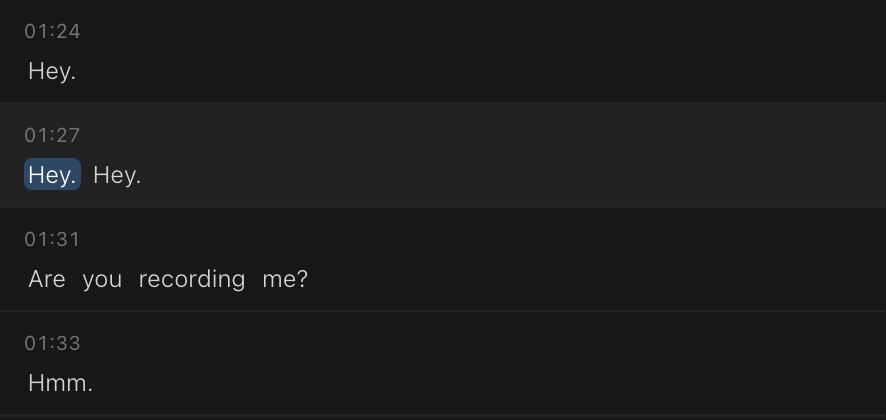
Sequences on the timeline now show a live miniature of their nested tracks. Dynamic elements like motion graphics also preview inline with stable track IDs, so you can see what’s inside without opening the sequence.In-editor script viewer
Canvas zoom gestures
Use trackpad gestures to zoom around the canvas more naturally. This release also ships a new solid color tool.8x faster playback start
Kino’s seeking latency for remote videos dropped from worst case ~4.5s (p99) to ~544ms. We also migrated to a new media storage system that is much more reliable and faster.Mobile support
Kino for media viewing now works on mobile. Chat with your footage, and browse your projects from your phone’s browser. The editor and advanced features are still only available on desktop.Improvements
- HEIC/HEIF photos are now supported for import
- Timeline clip indicator shows which portions of media are used, like DaVinci Resolve
- Cmd+Enter sends results in the command palette straight to the timeline
- New branding and color scheme from Primary Design sprint
- In-app feedback button for bug reports
- Faster remote media storage
- Significantly more resilient background job system
- New landing page
Fixes
- Fixed client-side rendering of captions and dynamic text
- Fixed option+drag crash on dynamic sequence items
- Fixed embedding errors during media processing
- Fixed HLS streaming and spritesheet generation on iPhone footage
- Fixed player null context and default track recursion
- Fixed bins and people management
- Volume boost beyond 0 dB now works consistently on items with both video and audio
- Fixed XML duration calculation and zero playback rate export
- Word-level search highlighting now works correctly for multi-word queries
- Fixed excessive retries causing page hangs
- Resolved video thumbnail decoding errors
- Fixed chat editor initialization race condition
- Clip deselection no longer unexpectedly clears trim points
- Improved login and auth flow reliability
- Fixed file picker cancel and browser compatibility
Open alpha release
This release brings Kino to production-ready status with NLE imports, real-time collaboration, and dramatically improved reliability.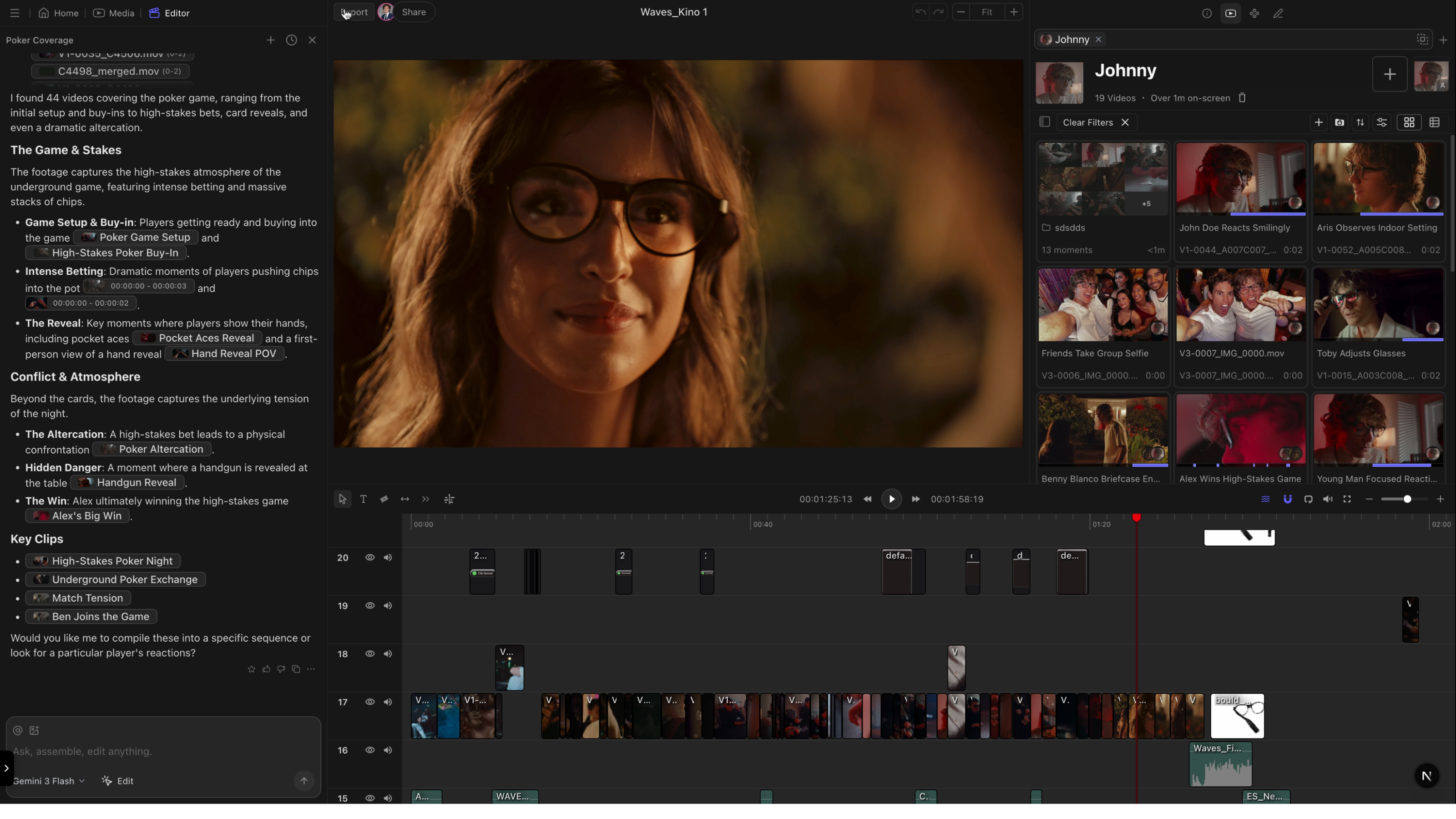
Import from Adobe Premiere or DaVinci Resolve
Drag in a project archive from your existing NLE and Kino rebuilds your timeline with full AI search, agentic editing, and shareability now available.- Premiere Pro: Use Project Manager to create an archive (.prproj + media)
- DaVinci Resolve: Export a Project Archive (.dra)
Real-time collaboration
Multiple editors can now work on the same timeline simultaneously. Changes sync instantly—no version conflicts, no “file in use” errors.Presence indicators show where your collaborators are working, so you can coordinate without stepping on each other’s edits.Motion graphics with subtracks
Describe a title, lower third, or animated background in chat. Kino generates it and adds it to your timeline.Subtrack support lets you layer multiple motion graphics elements together for more complex compositions.Overhauled user interface
Every button, panel, item, color and interaction in Kino has been adjusted to fit a denser and more professional theme.- Unnecessary padding and spacing has been removed, which means you can see more of your timeline, media, and chat all at once
- Fixed color inconsistencies across all components
- Buttons and list items respond instantly on hover (far fewer fade-in animations)
- Consistent border radius and text sizes across Kino
Improvements
- Rendering is now significantly more reliable across export formats
- Lighter storyboard thumbnails for faster canvas performance
- Processing bottlenecks reduced
- Responsive dropdown for bins and people on narrow screens
Fixes
- Fixed undo clearing entire timeline on load
- Fixed adding clips to playlists from search results
- Fixed hover card minimum width causing layout shifts
Media comments & client-side rendering
Review footage with your team using timestamped comments. Exports are now up to 10x faster—and nearly 100x faster for pure motion graphics thanks to client-side rendering.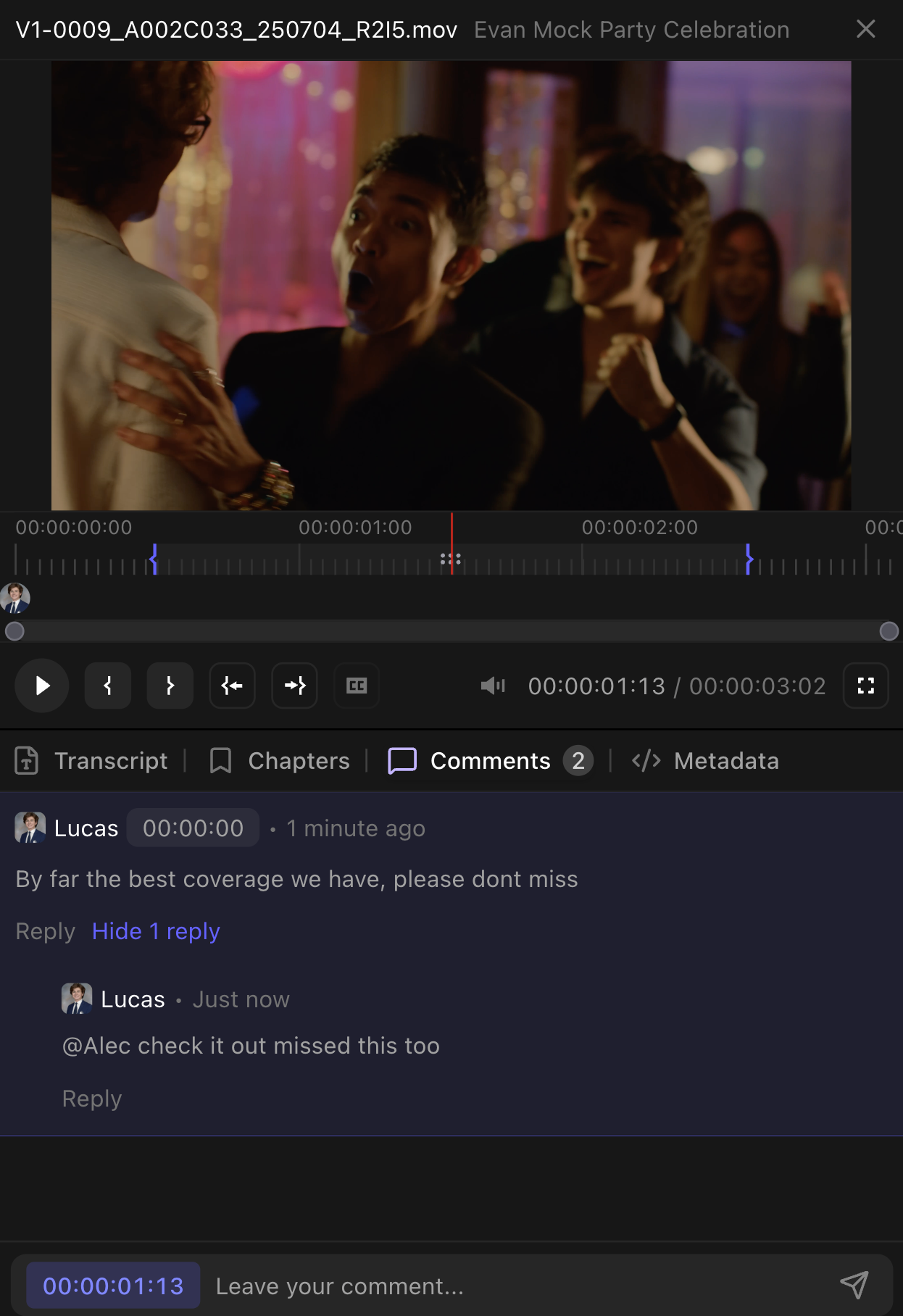
Comments
Leave comments on any frame of your media.- Timestamp linking: Click a comment to jump to that moment
- Replies and reactions: Thread conversations and react with emoji
- Shareable links: Send a link that opens directly to a specific comment
Client-side rendering
Exports now render directly in your browser instead of on our servers. The result is dramatically faster turnaround—up to 10x faster for video exports, and nearly 100x faster for pure motion graphics compositions.Large videos also stream reliably on slow or unstable internet connections. Kino automatically adjusts quality to keep playback smooth.Improvements
- 5x faster audio peak generation
- Cleaner model picker with legacy models removed
- Chat now sees which frame you’re viewing in the editor
Fixes
- Fixed dragging new videos onto the timeline
- Fixed cut/paste edge cases on timeline
- Fixed border styles not loading on landing page
- Fixed non-16:9 video aspect ratio handling
Skimming & fast seek
Preview footage instantly by hovering over the timeline—no clicking required. This release also brings dramatically faster seeking and thumbnail generation.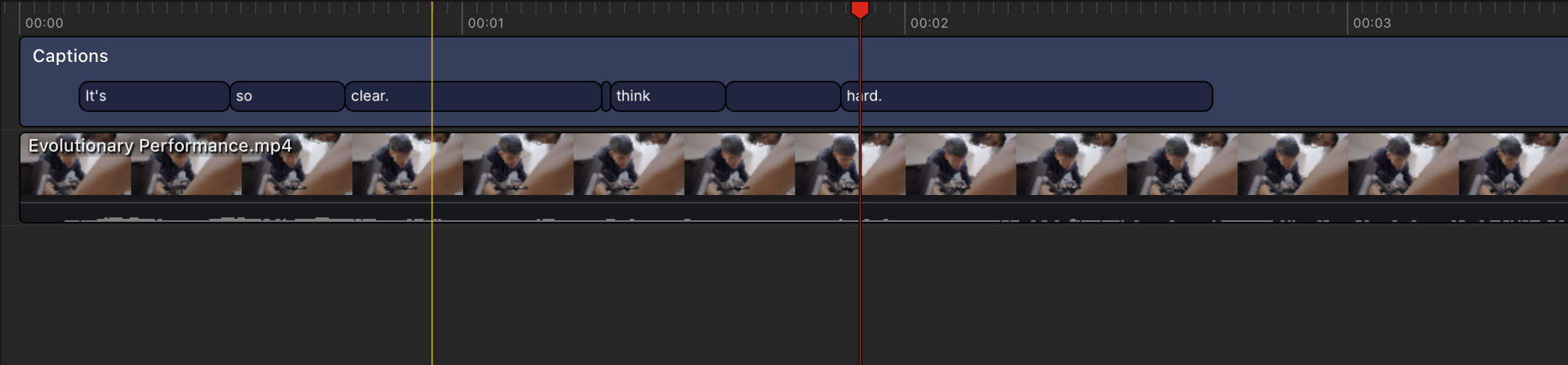
Skimming
Hover your mouse over the timeline to preview footage in real-time, just like Final Cut Pro. The playhead follows your cursor and video plays in the viewer as you move.- Click the waves icon in the editor toolbar to toggle skimming on/off
- Start playback while skimming to commit the hovered frame as your new playhead position
Fast seek
Seeking to any point in your timeline is now dramatically faster. Improved keyframe detection means less waiting when jumping around long videos.Thumbnail generation is also faster, so your timeline populates quicker when importing new media.Improvements
- Hover states refined across all interactive elements
- Chat now knows which frame you’re viewing in the timeline
Fixes
- Fixed many large file processing failures
- Fixed face detection state for users with older desktop app
- Fixed storyboard connection drops during editing
Pro editing tools
New tools that bring Kino’s timeline editing closer to professional NLEs. Split, slip, select, and duplicate with familiar keyboard shortcuts.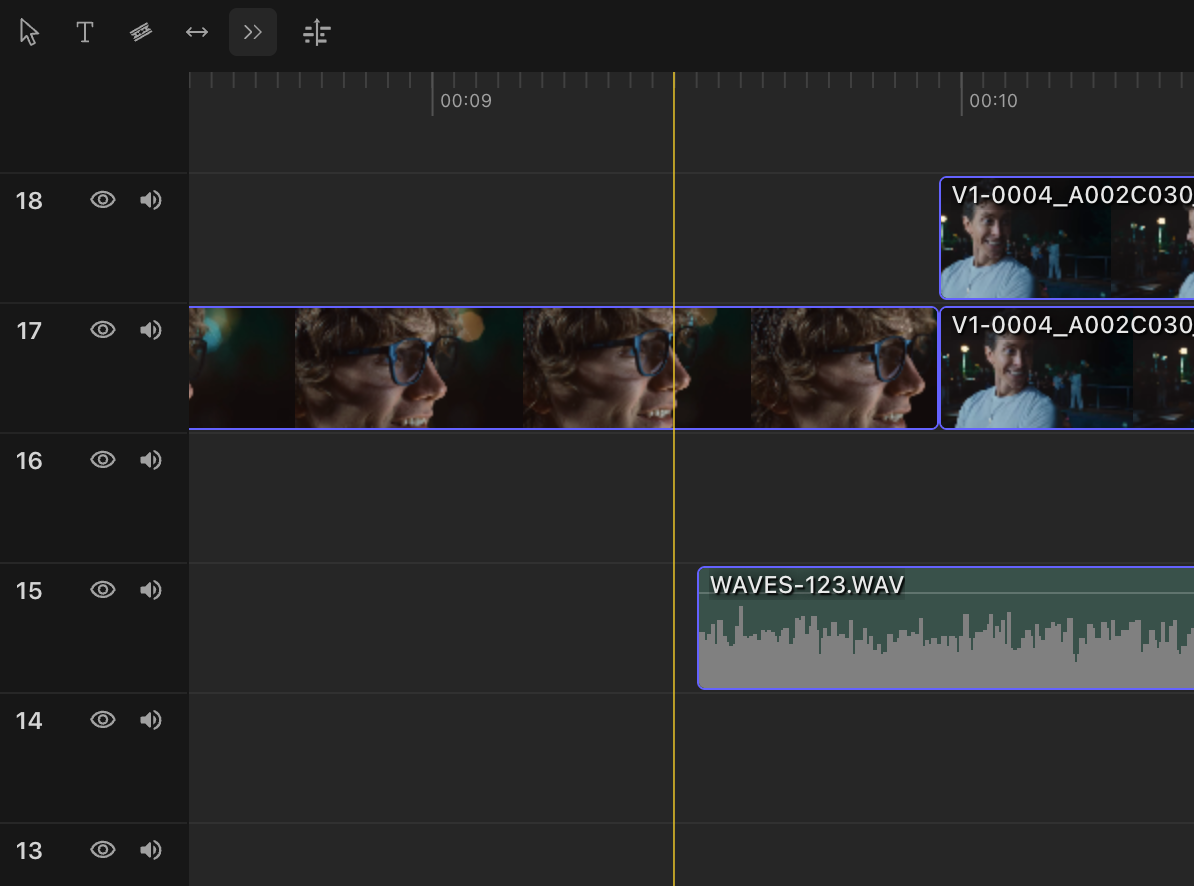
Razor tool
Press R to activate the razor tool, then click anywhere on the timeline to split a clip at that point. Just like Premiere Pro.Track select forward
Shift-click on any clip to select it and everything after it on that track. Perfect for moving entire sections of your edit downstream.Option-drag to duplicate
Hold Option (Mac) or Alt (Windows) while dragging a clip to duplicate it instead of moving it. No more copy-paste-position dance.Slip tool
Press S to activate the slip tool. Drag left or right on a clip to shift which part of the source media is visible—without changing the clip’s position or duration on the timeline. Just like Premiere Pro.Cropping
Double-click a video clip to enter crop mode. Drag the handles to adjust the visible frame bounds.Improvements
- Storyboard elements snap to each other and canvas edges
- Drag files into chat or timeline from a unified dropzone
- Chat responses appear as draggable pills you can drop onto the timeline
- Media tags show which source (bin, search, etc.) each clip came from
Fixes
- Fixed slider drag behavior resetting unexpectedly
- Fixed storyboard rendering going blank
- Fixed some media files failing to render
- Fixed chat panel shifting down when new messages arrive
Audio and image support, web search
Drop any media type onto your timeline—images, audio, GIFs. Chat can now search the web to find assets for your project.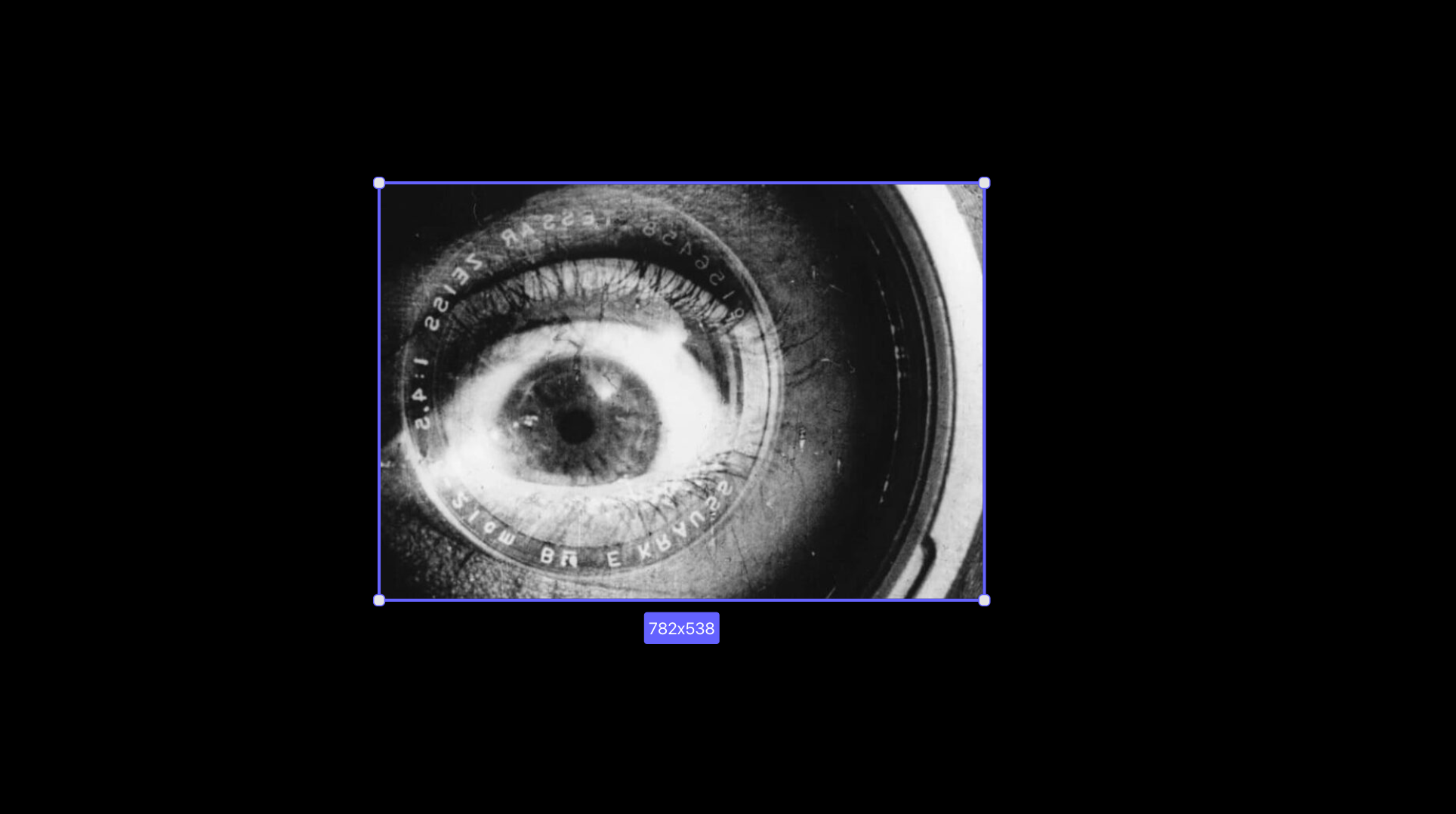
Bring in images and audio, plus ask Chat to search the web for assets you need. In this case, chat retrieved a 'Kino Eye'.
Timeline media support
Drag images (PNG, JPG, WebP), audio files, or GIFs directly onto your timeline tracks. They behave just like video clips—trim, move, layer.Transparent export
Export your composition with a transparent background as WebM with alpha channel. Perfect for overlays, lower thirds, and motion graphics.Web search in chat
Chat can search the web to add assets to your project. Gemini 3 is now available as a chat model option.Improvements
- Captions layer renders via canvas instead of DOM (1000x fewer nodes, no lag on long transcripts)
- Selection-only mode filters media browser to selected clips
- Thumbnails and waveforms generate in-browser (no server round-trip)
- Caption inspector handles 10,000+ word transcripts without lag
- Text elements can be added directly to timeline
- Smoother onboarding when opening editor for first time
Fixes
- Fixed unnecessary re-renders slowing down timeline
- Fixed GPU jobs getting stuck in queue
- Timeline clips now have minimum duration (prevents micro-clips)
Bins & Premiere chat
New
- Premiere smart chat: AI can read your Premiere project and answer questions about it
- Playlists renamed to Bins (matches how editors actually think)
- Select footage window: quick popup to pick clips without leaving the editor
- Spritesheet thumbnails load faster than individual frame requests
- Search within specific regions of a frame using visual embeddings
Improvements
- Deleted clips now sync properly between database and vector search
- Bin cover images auto-generate from contents
Fixes
- Fixed broken screenshot links in docs
- Fixed 404 page crashing in desktop app
- Fixed chat messages sometimes failing to send

Native Premiere panel & new home
True Premiere panel
Kino now appears as a native panel directly in Premiere Pro. Search, log footage, tag people, and chat without switching apps.Requires Adobe Premiere Pro BetaTo enable the Kino panel:- Make sure you are running the latest version of the Kino desktop app (1.1.14 or higher)
- Open Premiere Pro (Beta)
- Go to Window > UXP Plugins > Kino > Webview Sample
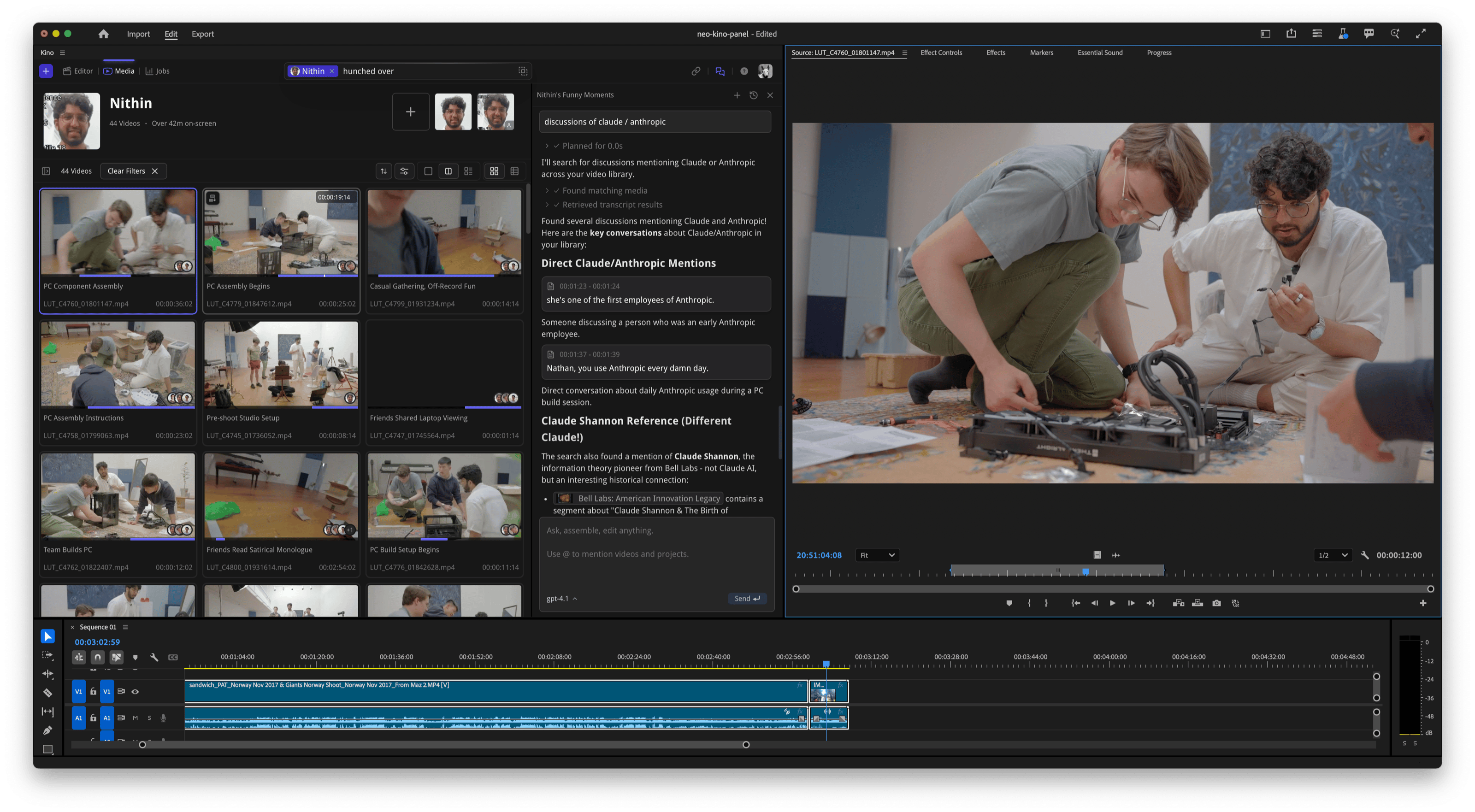
Redesigned home page
Completely reimagined Home experience that’s more welcoming and intuitive for new users.Improvements
- Native Premiere Pro panel integration
- New Home page interface
- Enhanced drag-and-drop from Kino to Premiere

Desktop app overhaul
Kino is now far more reliable and stable, with our desktop app that instantly reads footage from heterogenous sources, communicates directly with both Adobe Premiere and DaVinci Resolve, and allows you to plan your edits for teammates to review.Companion mode for Adobe Premiere Pro
If you’re running Adobe Premiere, use the “Companion Mode” toggle to work side-by-side with Premiere. Find and chat with your footage, or create a timeline for your edits.Improvements and fixes
- Much faster better scrolling of many items
- Better playback while processing footage
Desktop app updates
- 1.1.3: Desktop app now supports back and forward navigation with the toolbar buttons and Logitech mice
- 1.1.4: Faster start time, companion mode improvements, and faster playback while processing footage
Legacy Kino
Performance & stability
Improved performance
- Kino Linker is significantly faster at serving images and thumbnails
- Improved UI responsiveness across the application
Bug fixes
- Fixed various stability issues in the background processing
- Resolved edge cases in video file handling
- General performance optimizations